DOWNLOAD THE APP


Customer Services
Copyright © 2025 Desertcart Holdings Limited
DOWNLOAD THE APP
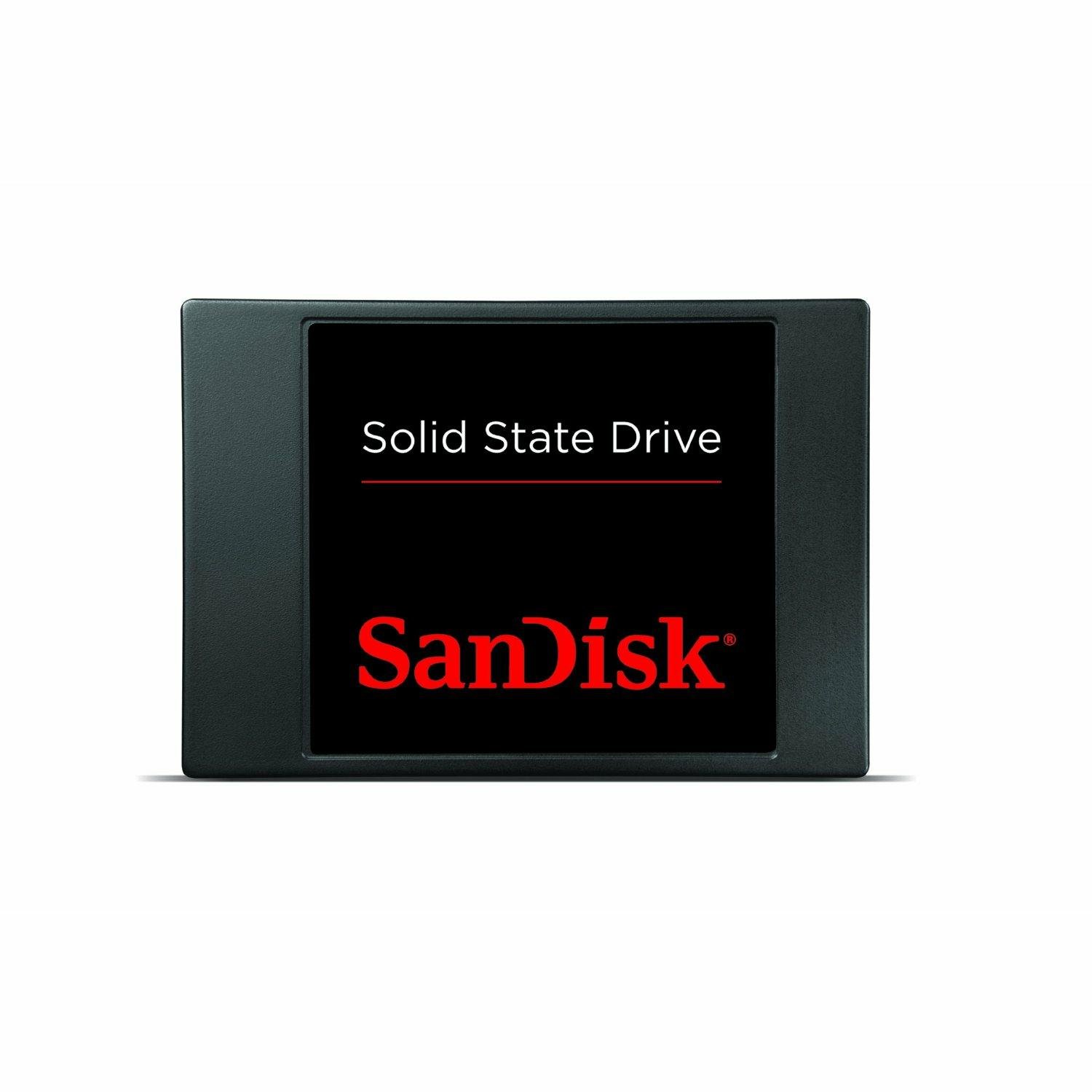

🚀 Upgrade your workflow—speed, stamina, and reliability in one sleek SSD!
The SanDisk 128GB SATA III 2.5-inch internal SSD offers a cost-effective, high-speed storage upgrade with read speeds up to 490 MB/s and write speeds up to 350 MB/s. Designed to extend the life of older laptops, it features low power consumption for improved battery life and comes backed by a 3-year warranty. Ideal for professionals seeking a reliable, fast, and durable storage solution that delivers real-world performance gains.
| ASIN | B007ZW2LY4 |
| Are Batteries Included | No |
| Brand | SanDisk |
| Colour | Black |
| Customer Reviews | 4.2 4.2 out of 5 stars (2,823) |
| Date First Available | 1 Jan. 2012 |
| Form Factor | 2.5-inch |
| Guaranteed software updates until | unknown |
| Hard Disk Description | Solid State Drive |
| Hard Drive Interface | SATA 6 GB/s |
| Hard Drive Size | 128 GB |
| Item Weight | 53 g |
| Item model number | SDSSDP-128G- G25 |
| Manufacturer | SanDisk |
| Operating System | Yes |
| Product Dimensions | 7.06 x 10.06 x 0.99 cm; 53 g |
| Series | 128GB SATA |
| Standing screen display size | 2.5 Inches |
B**F
brilliant upgrade for ageing laptop!
OK, this is not for those looking for the very best. It looks really cheap and plastic compared to the sleek Samsung 830 I bought at the same time and probably doesn't perform in the same benchmark league either. Nor are there any accessories of any type in the box. Frankly, I don't care about the numbers, all I am worried about is the real world results. I bought it to try and revive a 6-7 year old Toshiba Satellite Pro L20 with a Centrino single core 1.73Ghz processor running XP Home and a SATA 1 40Gb hard drive. The laptop hardly got used because it just took too long to boot - easily 10-15 minutes, and was extremely sluggish after that. I've been toying with the idea of trying an SSD and when the Sandisk 64gb appeared in the Amazon flash sale, I thought I would give it a go. On connecting to the computer with the USB to SATA cable supplied with the Samsung, I was concerned to see no recognition of the SSD. I then tried my Windows 7 desktop and realised it needed to be initialised before formatting so I let Windows 7 do the honours. (From numerous comments on the web, I understand Windows 7 does a better job of formatting an SSD than XP so this is the preferred option). Back to the laptop and I downloaded the free version of Macrium Reflect to clone the hard drive. After 3 attempts, this did not work so I then tried the EaseUS Disk Copy Freeware. On installation, this prompted the creation of a boot CD which then needs the computer to be restarted and enter the boot menu at POST (press F12 immediately after starting the computer) and select boot from CD/DVD drive. EaseUS fired up and cloned the disk without a problem and the resulting cloned SSD worked perfectly. Note that the transfer rate over USB2 was around 1.2GB per minute - do the maths and you will see that this is a long process and is a real nuisance if it has to be repeated. I wasn't expecting much, but frankly I am amazed. From pressing the start button to Internet Explorer open and responsive now takes exactly 60 seconds. Everything seems to happen quicker. I am sure we will be using the laptop a lot more for quick online research from now on. I can't say how reliable this will prove to be, especially in the XP environment as I have only had it installed for a couple of weeks - time will tell. As an aside, I then put the Samsung 830 into my son's Dell with Intel C2D and running Vista expecting similar results, but was slightly underwhelmed. It is a little quicker to react, but the improvement is nowhere near as dramatic. I needed the Free EaseUS Partition Manager to reduce the size of the partition to be cloned in this case and also found EaseUS Disk Copy Freeware did not work, but Macrium Reflect did! Reducing the partition was a long process, in my case nearly 2 hours. The system reported over 52,000 files to be moved and when it took 5 minutes to move the first 10, I started to worry, however it did get quicker as it went along.
V**N
Hard drive replacement
I have recently bought this 128GB Sandisk Pulse SSD earlier this year, the intended use was to replace the stock SATA II hard drive in an Acer 3810TZ laptop. All of which I have done now and what a difference! from the power on button to desktop screen after all passwords is now done in less than 40 seconds, applications run faster and the lag effect has all gone, battery life is now much improved as well. This is a perfect example of the use of an SSD, you will not regret it! How did I do it? I used the OEM version of Windows 7 on the laptop and backed up the software as you would to create your rescue discs, did a clean install on to the SSD and this was done without even burning any DVD discs. 1. Run your laptop and use your browser to search for and install the 30 day free version of Virtual CD, this allows you to mount a virtual DVD burner. Read the instructions, but basically you create a blank virtual DVD and mount it in the virtual burner. 2. Run from your start button the Acer folder> Recovery> Acer recovery program > Create factory default disc. Follow the instructions, but first of all look to see how large the recovery data files are (mine was 8.5GB) 3. Go back to Virtual CD, go and create a new blank ISO DVD disc, but change the size of the disc to a larger capacity (I did 13.4GB ish) Since it's virtual you can custom select a larger disc more than 4.7GB, this way it's all done in one step. Mount the disc into the virtual DVD burner 4. Now go back to the recovery program, select the DVD burner/disc that is now available and run the Create factory default disc process. 5. Now you need to prepare a suitable USB flash drive (I used a 16GB) You need to specifically create a bootable USB drive, follow the instructions on Maximum PC How to create a bootable USB, only format the USB drive to NTFS and not FAT32. 6. Go to your newly created Backup Virtual DVD and mount the disc into the virtual CD drive, from Start > Computer open the disc to view all the folders and files, select all, copy the entire contents to your newly prepared bootable USB drive. 7. Hardware, now your nearly there! Shut down your laptop and follow your Laptop / SSD instructions to replace the hard drive with your new SSD. 8. Now before you boot only have your newly prepared USB connected, go to the Bios (hitting F2) and go to the boot priority and change it to USB HDD as priority 1. Also make sure your set to run the SSD in AHCI mode, not IDE. Save your Bios settings and allow the re boot to commence 9. Follow all the instructions and it should re install the OEM version of Win 7. 10. Once completed don't forget to change your Bios boot priority back to the SSD as priority 1 and not the USB I followed various tutorials on YouTube as well, but don't go for all this in one go, do it in stages it take hours! But as I can testify you can reinstall your backup OEM software without using DVD's or having to buy an optical drive just for the job. Other tips as well for an SSD are to disable SuperFetch, indexing and defragmentation; these all give the SSD a hard time and reduce life expectancy. If your SSD has software tools, these may be dealt with for you, if not just search your web browser for simple instructions.
J**T
maybe not the best
but certainly not the worse. With the speed SSDs work you won't really notice that there are better performing ones out there. At 1.5GB per quid it was worth the money to pop this in 1 of my home machines as a system disc. Recovery partition is on the standard HDD so this just has to cope with the day to day running and normal programmes. That machine now opens in less than a third of the time it used to, which is nice. Other programmes now on the disk also open quicker when up and running. While with this PC not initially slow in opening things anyway, you do notice the time difference as things just flow better. I particularly notice now when using my work machine which used to be about the same as the PC I popped this drive in. Now I notice every lag on the work machine and wish they would upgrade too. I could direct you to better SSDs for gaming, but at this price and with your back-up elsewhere for a reinstall just to be on the safe side, it has the price tag to make it a good invetment for that quicker smoother experience.
M**E
Works great for me! Super cheap! Threw it in a laptop that had a bad HDD, and off to the races! At this price, I'm not all that concerned about Read/Write speeds. SSDs are a great choice for laptops that may be used around kids since they don't break from impacts as easily as HDDs. Memory house seller took their sweet time getting the package shipped but it was free shipping so can't really complain! I really considered going for a faster (and maybe more dependable) 250GB drive for just 30-40$ more, but I just needed cheap SSD to get a laptop up and running that someone had given to me. Windows 10 boots up in like 15-18 seconds. Just note, this does not have a 3.5" adapter tray if your planning to use this in a PC. You'll either need an adapter tray or some other arrangements (like velcro stickies or something).
F**A
Ho un portatile con dentro un HDD da 500gb SATA II, visto che non mi interessava la capacità ma la velocità (anche perchè se sei un programmatore/montaggio video è necessario) ho comprato questa SSD per avere maggiore velocità. Poi avendo venduto l'HDD interno come usato alla fine l'ho pagata solo 50€. Pro: -Velocità fino a 16 volte quelle degli HDD attuali per portatili e netbook -Nessun rumore -Indistruttibile, se vi cade il portatile state sicuri che non si rompe, mentre gli HDD è probabile una rottura -Velocità più veloci tramite USB3 -Espansione di archivi e files velocizzata -Il PC ora non si blocca mai -Non si surriscalda Contro: -La velocità di scrittura è leggermente più bassa della concorrenza (la differenza non la notate se fate azioni quotidiane, ma è sempre maggiore delle SSD Samsung) -Nella confezione non è presente l'adattatore per fissi/portatili nè le viti, quindi se lo avete perso/buttato dovete comprarlo a parte Consigliato a: -Tutte le persone che vogliono un PC/Notebook/Netbook che non si blocchi mai e sia veloce a fare quello che fà -Persone che praticano spesso montaggio audio/video (il quale è molto pesante) -Programmatori, programmi pesanti come i Visual della Microsoft diventano leggerissimi con questa SSD TL;DR: Prodotto ottimo, potevano migliorare la velocità in scrittura e completare la scatola
F**O
EL DISCO ES SUPER RAPIDO, NO SUENA, CON LA COMPU NO IMPORTA EL PROCESADOR NI MEMORIA QUE TENGAS, TE ASEGURO QUE CON ESTE DISCO PODRAS TRABAJAR MUCHO MAS RÁPIDO SI TIENES UN I7 CON UN DISCO NORMAL, TIENES UN FERRARI CON RUEDITAS DE UN SMART AUNQUE SABEMOS QUE ESTOS DISCOS SON INMORTALES NO SE DAÑAN POR NADA, EN PARTICULAR A MI ME DIO UN PROBLEMA ALGO QUE ES INTERESANTE POR QUE UN DISCO TAN EXCELENTE NO SABEMOS COMO CUBRE LA GARANTIA, PUES LA GENTE DE SAMSUNG SE PORTO MUY MUY BIEN Y LA ATENCION FUE SUPER AGRADABLE, Y ME PIDIERON MANDARLES EL DISCO POR CORREO CERTIFICADO Y EN MANOS DE 10 DIAS ME ENVIARON UNO NUEVO.. ASÍ QUE APARTE DE RECOMENDARLOS POR QUE SON EXCELENTES SI LLEGARAS A TENER UN PROBLEMA SANDISK RESPUNDE SIN PROBLEMAS LAS GARANTIAS
T**S
Diese SanDisk SSD ist optimal als System- oder Datenfestplatte einsetzbar. Sie wurde bei mir sofort korrekt im Bios und auch in Windows erkannt. Wenn man die Besonderheiten für den Einsatz von SSD's beachtet (möglichst den AHCI-Modus im Bios einstellen, aktivierter TRIM-Befehl im Betriebssystem, Prefetch bzw. Superfetch und Defragmentieren unter Windows deaktivieren), wird beim Einsatz der SSD als Systemfestplatte das ganze PC-System spürbar schneller, vor allem bei Programmstarts und beim Hoch- und Herunterfahren. Die SanDisk SSD erwärmt sich nur unwesentlich und ist natürlich wie alle SSD's geräuschlos und energiesparend. Bezüglich der Lebensdauer mache ich mir bei korrekter Einstellung im PC-System keine Sorgen. Die schlichte Verarbeitung finde ich gut. Da sich im Innern des Gehäuse nur RAM-ähnliche Chips befinden, ist die Ausführung komplett in Kunststoff absolut ok und gibt meinerseits überhaupt keinen Anlass zur Kritik. Mit Stand Januar 2014 sind hier 128 GB für knapp siebzig Euro zu haben - bei dem Preis sollte man erst gar nicht mehr an die 64 GB-Variante denken, zumal das 128 GB-Modell auch noch bessere Leistungswerte aufweist. Der Anschluss an eine SATA III Schnittstelle ergibt eine theoretische Geschwindigkeit von 6 GB/s. Die SSD läuft auch an SATA II Anschlüssen mit 3 GB/s. Ob man in der Praxis wirklich spürbare Unterschiede zu den teils erheblich teureren "Premiummodellen" von Samsung, SanDisk und Co. feststellen kann, wage ich mal zu bezweifeln. Benchmarks zeigen allerdings schon, dass es messbar schnelleres auf dem Markt gibt. Für mich spielt es aber keine Rolle, ob Windows nun in 5 oder 6 Sekunden hochgefahren ist. Die herkömmliche SATA-Platte ratterte da teils Minuten vor sich hin, bis das letzte Ikon auf dem Desktop aufgebaut war. Im Windows7-Leistungsindex erreicht die SanDisk 128 GB in meinem PC einen Index von 7,5. Das ist ok. Die SSD wird in einer unscheinbaren Schachtel geliefert, die kaum größer ist, als der Inhalt selbst. Software ist nicht enthalten, auch keinerlei Einbauschienen oder Ähnliches. Da keine mechanischen Teile verbaut sind, ist es der SSD völlig egal, in welcher Position sie sich befindet. Ob umgedreht, wackelnd oder vertikal spielt keine Rolle, solange die Anschlüsse fest aufgesteckt sind. selbst ein Schütteln während des Betriebs bringt die SSD nicht aus der Ruhe (für den Einsatz in einem Notebook sind SSD's neben Strom- und Gewichtersparnis auch deshalb besonders vorteilhaft). Bei mir liegt das Teil als Systemfestplatte lose im Festplattenkäfig eines Miditowers herum. Sollte der Preis noch weiter fallen, fliegt auch noch die alte Datenplatte heraus oder ich nutze eine weitere SSD als externe Festplatte in einem üblichen 2,5-Zoll USB3-Gehäuse. Ich bin jedenfalls gespannt, wie sich Preis und Größe der SSD's in Zukunft entwickeln. Auf der SanDisk-Homepage kann man sich eine Diagnosesoftware für die SSD herunterladen - wer's braucht... Fazit: schnelle, zuverlässige und günstige SSD ohne Schnörkel können nur 5 Sterne bedeuten.
W**F
The hard drive of my old laptop was always "acting" up and the overall speed of the OS, whether Vista or Ubuntu, was quite slow, although Ubuntu was significantly faster. I did not want to invest very much to keep my old laptop functional, so I reviewed many the solid state hard drive offerings and found the 64 GB SATA 6.0 SanDisk to be the most economical match for my needs. Fortunately my old laptop i386 was able to accept the SATA 6.0 specifications. The SATA 6.0 is downwards compatible with the plain SATA specs which my old laptop has. The installation of the SanDisk was very easy. Fortunately I had a backup image of my old disk with the Ubuntu Operating System (OS) on a USB stick so that restoration of the image to the SanDisk was simple and worked well. If you do not have a backup image of your old disk then you can purchase a 'kit' specifically designed for migrating from your old hard disk to the new SanDisk. If you are planning to copy an image of your old disk, make sure that the SanDisk has the same Gigabyte (GB) capacity, or that it is larger in capacity than your old disk. If you have a backup image created by the "Ping" backup utility then the new disk capacity can be smaller than the old disk but must still be large enough to accommodate the OS and data image that was created by Ping. For me SanDisk was a good investment. I have converted my old laptop to a desktop with a separate monitor, and it is currently running Ubuntu 12.04 OS at speeds at least 5 times faster than before. 5 MONTHS later - October 29, 2014 and the SansDisk is still running flawlessly! ........ I have it partitioned for the Linux OS and (about 27 Giggabytes) and a file storage ........ partition (about 37 Gigabytes).
Trustpilot
2 days ago
2 months ago