Buy anything from 5,000+ international stores. One checkout price. No surprise fees. Join 2M+ shoppers on Desertcart.
Desertcart purchases this item on your behalf and handles shipping, customs, and support to Israel.
🚀 Elevate your home WiFi game — never miss a beat or a binge!
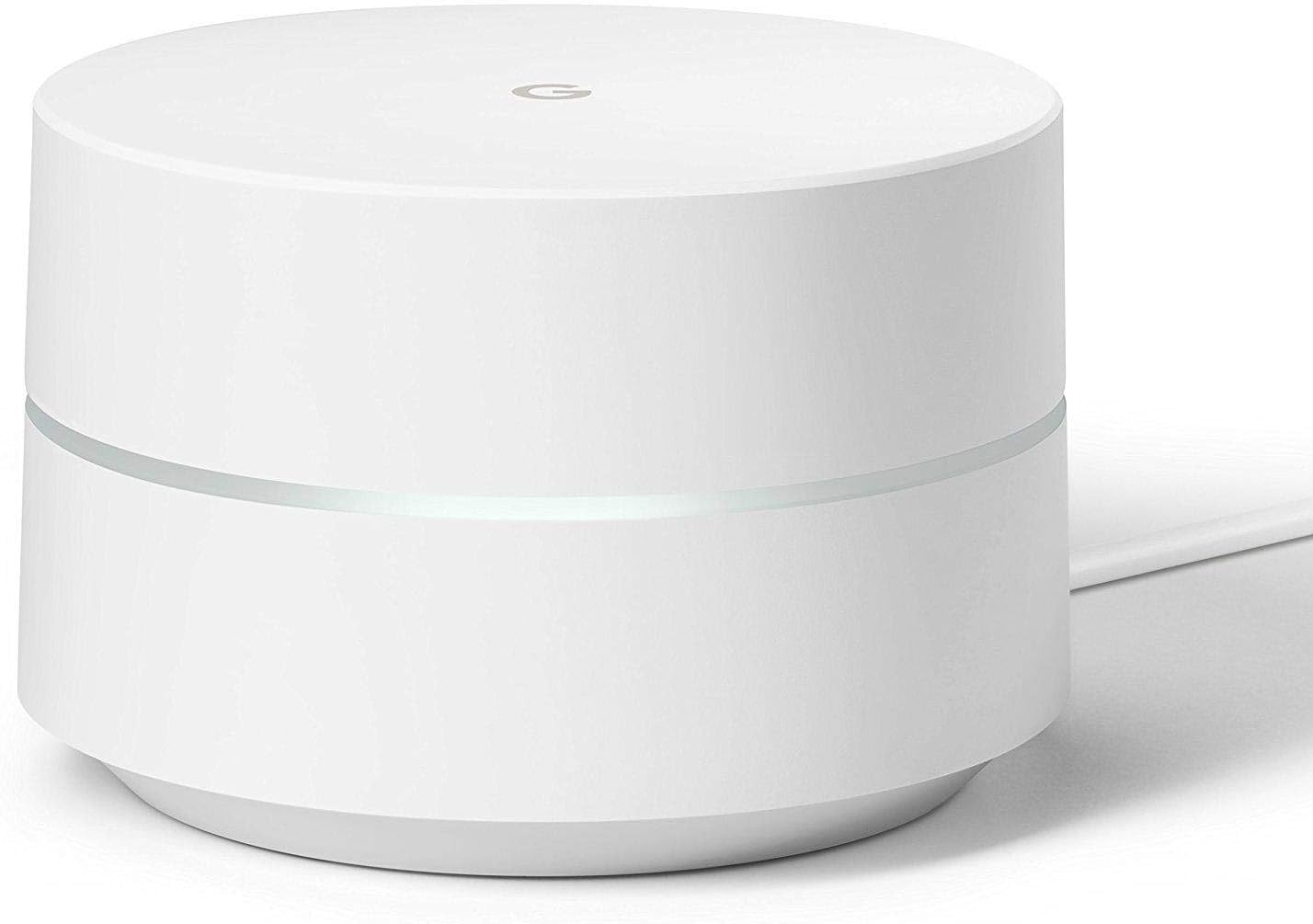
The Google WiFi System 1-Pack is a sleek, app-controlled mesh router that delivers up to 1200 Mbps throughput and covers 1,500 square feet per unit. Designed to eliminate dead zones with smart network assist technology, it ensures seamless, high-speed WiFi throughout your home. Easy to set up and manage via the Google app, it supports WPA3 security and comes with 24/7 Google support and a 1-year warranty, making it a reliable upgrade for modern connected homes.
| ASIN | B01MDJ0HVG |
| Antenna Location | Home |
| Antenna Type | Internal |
| Best Sellers Rank | #6,538 in Electronics ( See Top 100 in Electronics ) #34 in Whole Home & Mesh Wi-Fi Systems |
| Brand | |
| Color | white |
| Compatible Devices | Personal Computer |
| Connectivity Protocol | Wi-Fi |
| Connectivity Range | 1500 Square Feet |
| Connectivity Technology | Wi-Fi |
| Control Method | App |
| Controller Type | Google Assistant |
| Coverage | 1500 square feet |
| Customer Reviews | 4.6 out of 5 stars 17,685 Reviews |
| Data Transfer Rate | 1200 Megabytes Per Second |
| Frequency | 5 GHz |
| Frequency Band Class | Dual-Band |
| Global Trade Identification Number | 00842776100610, 00842776106704 |
| Has Internet Connectivity | Yes |
| Has Security Updates | Yes |
| Is Modem Compatible | No |
| Item Dimensions L x W x H | 4.17"L x 4.17"W x 2.7"H |
| Item Weight | 0.74 Pounds |
| LAN Port Bandwidth | 1000 megabits_per_second |
| Manufacturer | |
| Maximum Upstream Data Transfer Rate | 1200 Megabits Per Second |
| Mfr Part Number | NLS-1304-25 |
| Model Name | NLS-1304-25 |
| Model Number | NLS-1304-25 |
| Number of Antennas | 2 |
| Number of Ports | 3 |
| Operating System | Linux-based (possible customized version) |
| Other Special Features of the Product | WIFi Protected,Seamless |
| RAM Memory Installed | 512 MB |
| Router Network Type | wireless mesh |
| Security Protocol | WPA3 |
| Special Feature | WIFi Protected,Seamless |
| UPC | 811571018970 842776106704 842776100610 842776100764 |
| Unit Count | 1 Count |
| Voltage | 240 Volts |
| Wi-Fi Generation | Wi-Fi 5 |
| Wireless Communication Standard | 2.4 GHz Radio Frequency , 5 GHz Radio Frequency , 802.11a/b/g/n/ac |
| Wireless Compability | 2.4 GHz Radio Frequency, 5 GHz Radio Frequency, 802.11a/b/g/n/ac |
W**D
Google Wifi - Easy Setup, Fast Wifi, Everything I Wanted!
Google Wifi Review TL;DR version: 48 hours in and I’m absolutely amazed. True to form and other reviews, these things just work, are rock solid, and fast. Very happy with the purchase. The longer version for those interested…. Background: A while back I got gigabit speed internet here at home. The speed is amazing on my wired iMac, but wifi through my Apple AirPort routers (1x AirPort Extreme, 3x AirPort Expresses acting as repeaters) was leaving something to be desired. Comcast had given me a big Netgear Nighthawk monstrosity as part of the gigabit package and when I tried it out vs. the AirPorts the difference was night and day - the Nighthawk wifi network was multiple times faster than the AirPort network. Come to find out my trusty AirPort network didn't support the newest, latest, greatest wifi standards so simply wasn't as fast as the Nighthawk. And Apple has apparently decided to get out of the router game. The Problem: To take advantage of the greater speed, I reconfigured my network to support both the higher speed Nighthawk wifi and the lower speed AirPort network. Why keep both? Because the single nighthawk didn't have enough range to cover my three story, 4,500 sq.ft. house (and the now hard-wired 1,000 sq. ft. guest house) while the multiple AirPort expresses did. So now I had two completely different wifi networks running at two different speeds covering different parts of the house. Not ideal, especially now that I'm more reliant on wifi for my iPhone (T-Mobile's signal in the house isn't great, so my wife and I have been using the really excellent wifi calling feature.) The Solution: Today I replaced ALL my routers with four Google Wifi units. The primary wired into the Comcast modem in the office (downstairs), one for the Master Bedroom (2nd level, mesh), one for the guest bedroom (kind of a separate split level thing off to the side, also mesh), and one for the Guest House (hard wired to Ethernet run from the main house). The primary unit connects to a gigabit switch that then connects to several wired devices. The Verdict: Only two days in, but so far I'm thrilled. The Google Wifi units form a mesh network that seems to cover my entire house in strong wifi. I haven’t found anywhere in my oddly shaped and sized house that i’m not getting flawless wifi. Some places are “faster” than others, but even in the “worst” spots I’m still getting at least 40Mbps which I’m not going to complain about. At best, I’m getting 200+Mbps, which definitely isn’t full gigabit but is leagues better than I could get from the AirPorts and on par with the best I’d ever gotten from the Nighthawk… while covering both houses with a single, uninterrupted network with great signal in every room. Setup was stupid simple and completely done from the iPhone app. Haven’t had a chance to really play with all of the cool features (internet pause, etc.), but the core functionality is fantastic. I was slightly concerned about functionality since it’s a Google device and we’re all-in on Apple gear (3x Macs, 2x iPhones, 4x iPads, etc.), but almost everything has worked flawlessly (the only glitch was, ironically, with the now Google-owned Nest Thermostats I have - the trick is to reset the network settings on the Nests and re-enter the new wifi info). Every device, wired or wireless, has worked beautifully and the speed is phenomenal. (As a note and as a point of comparison, I had been a pre-orderer for the Luma mesh wifi system and had briefly tried that out when it finally shipped. I had been greatly looking forward to it and was so disappointed when the units finally arrived. Setup was a nightmare - the stations couldn’t find each other requiring starting over, but then I entered a slightly different name during the process and then it tried to set up two networks, the coverage was bad, and on and on… The Google Wifi units are everything I had hoped the Luma system would be and more.) Downsides: Honestly, none that I can really tell so far. I’ve long since given up on caring about being able to tweak every little power user setting in a router, so the options offered by the Google Wifi app more than take care of my needs. It was a little confusing when I hooked up the Guest House unit (wired into Ethernet) as a wifi point because it asked me to unplug the ethernet during configuration but then didn’t really give me any guidance, but it still flawlessly added the unit to the existing mesh network (but now with ethernet backhaul). Placement in my house was a little bit of a pain, but that’s just my house being weird - since you just have to plug in wherever there’s a power outlet it’s about as painless as it can be. Final Thoughts: If anything changes or something wonky happens I’ll update this, but otherwise I wholeheartedly recommend Google Wifi. Buy it you’ll love it!
M**B
Day One Experience with Google WiFi - Updated
After 18 months, my Google WiFi is doing great. It provides a consistent and strong WiFi signal throughout my home and in my front and back yards. I almost forget about it, but it is always there. I tested another current (2018) system by Linksys, but it was not as consistently fast as my Google system. Get this - you will be happy with it. Original Review: Day One: Loving it... I have a two story home and use Comcast for my internet service provider. They provide a single modem / router which reaches most of my home pretty well. It is located upstairs in a front room of my home. Unfortunately, it doesn't do a tremendous job of reaching my downstairs office and is spotty in my back yard. I like to listen to my Sonos system when I'm by my swimming pool and it's always a 50-50 proposition if my phone can stay connected to my home network to control the Sonos. Occasionally, when I run backups, my backup program tells me that I have lost connection to the network drive. I have tried a couple of TP-Link range extenders and they help, but not overwhelmingly. After reading a TheWireCutter article on mesh networking products, I decided to try Google's WiFi system. WireCutter actually recommended Netgear's Orbi, but as I read their review and others, I concluded that the Orbi really isn't mesh at all..... it's just a really really strong WiFi router and repeater. I'm sure it works fine, but it is more money than Google's product and I wanted to try a true mesh network. I set the Google WiFi up this morning. It took about ten minutes to put all three units in play. I think it took longer for me to come up with a clever name for my new home network than to physically install the units. The app for the system is very easy to follow, in true Google fashion. I tested the WiFi signal throughout my house and compared it to my still functioning Comcast WiFi signal. Outstanding! In places where my old signal was wimpy, the Google system was pumping out a strong clear signal that permeated places in my back yard yet unseen by WiFi. Very impressive. Next: the fun part--- reconnecting everything in the house to the new WiFi connection and new network. I have a 26 port network switch which connect my two network attached storage drives, my television and DVD player and my beloved Sonos bridge. I ran an ethernet cable from the 2nd port on the main Google unit to the switch and hoped that it would instantly allow access to everything. Nope... everything still expected to be connected to the original network. So, I disconnected cable running from the Comcast router to the switch, waited a few minutes and then checked. That was all I needed to do for those devices to connect - just give the switch ONE connection the network running through the Google router. The next issue I encountered was that my Sonos system would run fine from my PC, but not from my android phone or tablet. In fact, it caused an issue where my phone and tablet would connect to my Google network, then disconnect, then reconnect. I couldn't get my Sonos app to control anything. I called Google's support line for this WiFi system to see if they could help. They gave me some good advice: - first, don't expect everything on your network to instantly recognize everything else. I've noticed in the past when I connect network devices, like NAS drives, they don't always connect for a few minutes. Sean, from Google support said that things might take a day or two to be fully integrated. - second, when something isn't quite right, power down your modem and your Google WiFi router - the one connected to your modem. Wait five minutes and then restart your modem. Give that about three or four minutes to fully come back to life, then power on your WiFi again. That can take a minute or so to fully reboot. When I did this, my Sonos system was fine and was fully controllable by my android apps. So, it's still early in the game, but I now have a really strong WiFi signal throughout my 3350 square foot house. I have a very good WiFi signal out by my pool. My network backups appear to be running much quicker and complete without interruption. I'll update this as things progress, but on Day One, everything seems to be better, faster and running just great.
J**N
Fantastic for the Average Consumer
TL;DR It's a great mesh WiFi system, and would be great for most average consumers. If it's in your budget, and you feel you could take advantage of it, buy it. You won't regret it. I bought this product after reading about mesh WiFi systems a year or two ago. It seemed like an interesting concept to me, but it was still fairly new, and therefor, there weren't many options available to the average person. Fast-forward to a month or so ago, and I was desperately in need of a new router. My old Linksys (10+ years old) kept blowing out A/C adapters. I have is flashed with a custom firmware, and had to increase it's power draw to boost the WiFi to reach most of our new apartment. This is a problem only because this building was built in the '50's, so the walls aren't exactly WiFi friendly. Even with that boost in power, though, the WiFi would cut in and out randomly, and certain spots (such as the bathroom and most of the master bedroom) could hardly receive a signal at all. After going through my third A/C adapter, I knew it was time to retire my trusty old Linksys in the search for something new. Being intrigued by mesh WiFi, still, I did a quick search, only to find out Google had tossed their hat into the ring with the Google WiFi System. Color me intrigued. I did my research, and settled on the idea of buying it. I was going to wait, but I was at work dreading not having WiFi at home for the time being, looked on Amazon, and found it at MSRP with same-day shipping from the local Amazon warehouse. I was sold. Got home from work, grabbed my package, and off I went. Setup was pretty damn simple. Anyone who has set up a router before should have no problem doing so with ease. The setup did take a little longer than I expected, as you have to do a connection test for each mesh point as you set them up, but it really wasn't an issue for me. A extra thumbs up to Google for the very intuitive app, I might add. It gives you time estimates for things to complete, so you're not stuck just waiting for it to finish in an unknown amount of time. Once it was set up completely, I did the speed test, and boy was I shocked. Where I live, we're shackled to Xfinity for internet at the speeds I want/can afford. My old router, being as old as it was, was only ever able to give us about half of my modem's speeds when WIRED. The speed test I ran with Google WiFi showed that I was getting my full allotted speeds over WiFi! I was in disbelief! Never have I had WiFi go over 100Mb/s! The wired connection to my mesh in the office for my PC was no different. Perfect connection with max speeds. In the month or so since I bought Google WiFi, I've only had one hiccup where my office mesh point went down. I did a simple mesh point reboot in the app, and a minute later, my internet was back and working. Haven't had any issues since. The biggest con I could possibly say about this system is one that will only affect those of us who are used to tinkering with our routers. There is no fancy stuff here. There's no DMZ, which was pretty upsetting for me, but I knew about that going into it. You can't really tweak very much with this system, and if that's what you're looking for, don't even bother. There's many other routers out there that you can tinker with besides this one. But if you're just someone looking to get reliable WiFi around your home (and a couple wired connections as well!), and without all of the hassle of complicated setup, then this is for you. The price tag is a tad hefty, but this should keep you going for the foreseeable future, in my opinion. I highly recommend it.
D**F
One of the best routers on the market!
Words cannot describe how much we love our Google Wifi System that we purchased during Cyber Monday last year for a set of 3 for around $200. We originally had an Apple Extreme (third generation), but due to overheating issues from the Apple's fan, we had to replace it even though we simply love Apple products, the Extreme is a POS. It took us several days to do our research and look online for a system that was versatile and easy to use and had our eye on this particular system for a while, but didn't want to make the purchase because of the high investment costs. We were quite happy when it came on sale during the Black Friday/Cyber Monday week. Installation was a breeze (surprisingly). Simply add the first dot near your modem and install the Google Wifi App on your phone. The app will walkthrough the installation process. To install the other dots, all you have to do is place the dot ANYWHERE you want and the system will automatically pick the second or third dot up and it takes a few seconds for the App to identify the additional dots. Unlike the Apple Extreme, the App provides comprehensive information on what devices are currently being connected to the wifi network. A great way to see who is on your network and how to remove devices that you aren't really sure should be on your network. Google went one step-up by providing remote access to your wifi network. A great tool for anyone going on vacation or traveling for work to track your wifi network at home. Perfect for anyone who has multiple devices or any smart home devices that you need to monitor (security system, pet feeder, Nest Cam). Each single "dot" covered about 1,500 square feet with all three covering about 4,00 square feet (about the size of a large home with 3-5 bedrooms). One dot can cover an apartment complex without any issue. The only negative is that the Google Wifi system had difficulty pushing signals through walls, hence the need for multiple dots throughout each room. We didn't have this particular issue with the Apple Extreme as it had no problem pushing wifi signals through different types of walls. Our rating scale Design: 5/5 Utility: 5/5 Effectiveness: 5/5 Noticeable flaws: The only flaws is the inability of the mesh network to push the wifi signal through walls as effective as other routers. Secondly, some people had issues with the LED light that is emitted from the device itself (but we enjoyed the light but wanted to put it here in case you do not). Our answers to the frequently asked questions: What data does Google collect from this router? This is what we found from Google: "The information your Wifi points and the Google Wifi app collect helps us deliver the best Wi-Fi experience possible. Importantly, the Google Wifi app and your Wifi points do not track the websites you visit or collect the content of any traffic on your network. However, your Wifi points does collect data such as Wi-Fi channel, signal strength, and device types that are relevant to optimize your Wi-Fi performance. Google policies and terms of services apply as normal to any Google services you use (like Gmail or Google search), whether you’re using them on an Google Wifi network or not." Can I set up a guest network that is isolated from my main home network? Yes, you can setup additional networks that is isolated from your main network with the different dots. Can i link up one google wifi router with a google onhub router to create a mesh network? Yes, they are linkable together. Overall, it is a simple, easy to use, and versatile mesh wifi system that can be used by anyone. We recommend purchasing the three dot system as it is more cost effective than purchasing one. The ability to track your network on the go is a great tool for anyone who has a smart home device system. Like our review? Hit the "Yes" button below for it being useful. Leave us a comment if you have any questions or send us an email. Follow us on Twitter, Facebook, or Amazon to get updates and daily deals.Thanks for reading!
1**A
It just works. A 4.5 Star Review.
I am a techie, mainly at the enthusiast level. I am by no means a networking expert. Our home is not large, only 1,200 sqft. However, it is an older home with thicker interior walls, a stone clad basement, and aluminum exterior siding. Getting a WiFi signal from our front room hub (where our able modem is) to our basement office all they way on the other side of our house was proving challenging thanks to the stone and brick fireplace and chimney stack. Our TP-Link wireless router could hardly muster two bars of Wi-Fi signal from the front room to the back of the house, let alone downstairs, on our patio, or worst off our garage. Before this system, we tried a Wi-Fi range extender. That lasted about a week before I sent it back. Sure it extended the range of our main router. The trade off was the never ending battle of having to manually change over to the closest WiFi network (the main router or the extended). I'm sure any logical and sane person would choose to name their extended network the same as their main network, smart thinking. Except. That only creates two of the same named networks, making it even more difficult to tell which one you are connected to. Being fed up with this, I turned to Amazon to find a solution. That is when I learned of Wi-Fi Mesh Systems. Holy cow are there many to choose from. So many reviews. So much networking goobly-gock. Many people tippy tapping the keyboard exclaiming their frustration that one system doesn't have DNS, IPV6, the LAN isn't gigabyte, and a bunch of other acronyms that frankly aren't relevant to the basic user. The very user these products are targeted to. I looked into Netgear's offering, as well as a few others at the time. There are more now for sure. What did it for me on the Google Wi-Fi system was...Google. They kinda know a thing or two about the internet. Anyway. I purchased this system in September 2017. I was hopeful it would solve my WiFi woes once and for all. I was very eager to install the system and wanted it to perform flawless, $250 is a lot to spend on hardware that is outdated after a year or so. We ended up setting up two units inside. One in our front room. We didn't keep it in the same location as our original router due to the interior structures of our house. We believed the fireplace and chimney were blocking a majority of the signal causing a dead zone. Instead, the unit now rests under a table lamp behind our sofa. Clear line of sight directly to back of the house. Perfect. With just the one unit installed in the new location, our WiFi signal was strong, full bars, even in the basement. But we had three of these things. We had to use the other two. After probably a week of messing around, we settled on the location for the second unit. In our back foyer. We hoped it would be able to penetrate our aluminum siding on both the house and garage to establish a respectable WiFi signal in the garage. Sadly, it did not. This is where the .5 star is deducted. The units do link up together to create the mesh network. The garage unit could never establish a strong enough connection with the unit that is maybe 40ft away in the back foyer. I suppose this is the aluminum siding acting a Faraday cage for the doomed WiFi signal. This problem was only remedied recently with a TP Link PowerLine adapter which is now, happily, supplying our garage Google WiFi with internet over the mains. In its 1.5 years of service, we have maybe had one hiccup which required a restart. One. In 1.5 years. That is fantastically reliable. The application used to setup the units is great. It is easy. The whole system is fantastic. I love that the units have a port that can supply a wired Ethernet connection. Especially handy when we added a security camera system and had to connect it to the internet. The system streams flawless over the WiFi mesh network. I really can't say anything bad about this system but... The .5 star deduction as noted above is due to the limitations of this system. The application doesn't tell you how strong or weak a signal from point to point is, just that it isn't strong enough to create the mesh. Another issue is that this system doens't include wall or ceiling mounts. Seriously. Google, you couldn't spend the extra $0.25 to include plastic wall/ceiling mounts? Nope. Have to buy those on Amazon from third parties. Anyway, that is all I have. If you want a system that just works, get this one. I have used it for the last 1.5 years with ZERO issues. The attached are speed tests. The first is from an iPhone Xs, the second is from a MacBook Pro Late 2013. Same distance any Google WiFi points. Our provider is Comcast and I believe we pay for 120MBps speed.
S**�
Great Speed Improvement, Easy Setup
I finally got so fed up with my SurfBoard modem/router coverage in our house that I took the plunge and upgraded to the Google WiFi Mesh Router 3 pack. My biggest problem was slow speeds and spotty coverage from the single router in my “office” room in our 3500 sq ft home. While I could achieve DL speeds of upto 50+ Mb/s in rooms close to the router, on my office laptop I was getting speeds of 0.15 Mb/s and often my printer would lose connectivity with the laptop. Long story short, after the new install I have great coverage all throughout the house and can get over 100Mb/sec using the Speed Test App on my office laptop. I am a happy camper! Installation: You connect the first node to your modem via an Ethernet cable, download the Google app and follow the installation instructions. Following a firmware update which only takes a few minutes you will be prompted to place the other mesh modes. I placed one in a bedroom on the same floor as the main node and it connected with good/great signal strength. This was a room that would not even get coverage from the existing router. The other node was placed downstairs in the family room adjacent to my office. This part was easy and completed quickly. The next part of the install was a bit more of a challenge. This involved connecting existing devices to the new network. Installation tip. Leave your existing wireless network active until you have transition your devices. Then disable the wifi radio on a combination modem/router or remove the separate router. Devices like iPhones, iPads, tvs, DVD players, satellite boxes, etc. are easily connected to the new network. I also have an alarm system, thermostats and a wireless camera connected to my network. The alarm was easy and the biggest challenge for the thermostats was getting them into wifi setup mode or reregisteing them for remote access. This was an issue specific to these devices and not an issue with the Google router. The camera posed the biggest challenge and hence my tip to leave your existing Network live and transition your devices before killing off your old network. Once all devices were transitioned I found a procedure online to put the SurfBoard into Bridge mode so it would only act as a modem and no longer as a wireless router. My device didn’t behave that well and would no longer communicate after some of the steps, so I ended up just disabling the wifi radio after multiple resets of the device. It’s only been a few days, but so far so good. Why Google wifi? I did the research on the other available mesh networks including eero, orbi and others, but Google was the cheapest. I have no desire to go in and tweak network settings. I. Just want reliable and fast Internet connectivity. If these issues are important to you, then another solution may be more appropriate. By the way the signal strength on my alarm went from one bar to three and now I may upgrade the garage door opener to a wifi model as I can now get a signal there! May also upgrade my stereo in the man cave garageto an network ready model. Just don’t tell my wife! She is also happy as the three “hockey puck” or mini “ufos” are not too objectionable to the decor!
J**S
Google WIFI, The Real Deal
Just thought I’d share some info. I know most if not all of us always hate those dead spots in the house with regards to internet and WiFi connectivity. I purchased up my service with a higher speed (500Mgbs) because I have up to 15 devices running at any given time. Gaming, 6 Smart TVs, 6 IPhones, 3 Mac Computers, 2 Alexa’s, my Security System, etc. It adds up fast. I had cox out to my house this past weekend and asked him how I can get more connectivity in places where the signal is weak. I told him I purchased a faster speed and it is still too slow. The rep told me it has nothing to do with speed as much as it has to do with the signal and connectivity. He said you can have 1G of speed but still be slow if your connection is weak throughout the house. The key is getting a strong signal everywhere so that speed is not compromised when weaker areas are attempting access in whatever capacity/form ie Iphone, Netflix, gaming etc. The cox rep told me that standard extenders do not do the trick. You know, the 10-20 dollar jobbers that plug into an outlet and look like a little cheap box. He also said the standard extenders are garbage because in order to benefit, they need to have a strong signal to them to begin with then the user has to manually connect to it time and time again. If the user is in their room on their iPhone and they leave, go down stairs then they lose the connection to the extender, have to reconnect to the main WiFi router and so goes the story. That is why extenders are cheap. They rarely serve their purpose. Trust me, I have tried this route in the recent pass. WASTE OF TIME AND MONEY. So, on to the solution that I am so so so stoked on. Totally worth the money, totally worth the investment. This is a real live, real life, real deal review of product I chose and it’s validity. My cox rep told me to look into replacing my current modem/WiFi router with a 2 part solution. Currently, I have a cable/WiFi combo. I decided to take my cox reps advice and purchased specific technology with the best most up to date technology. Part 1: I purchased a stand alone cable modem. I chose the Next Generation Arris SurfBOARD SB8200 with 3.1 DOCSIS technology. Before the purchase it is extremely important to make sure your cable provider supports the modem technology. It will say in the description what providers support it. If unsure, call your provider first. A lot of times the providers update what they support but don’t let the manufacturers know. Very important step. Part 2: Once you remove cable provider modem/WiFi combo, install new modem. Plug it in and attach the cable coax only. Call your cable provider and tell them you installed a new cable modem and need them to update their end and establish the connection. This does not take long. After that you are done and ready for part 3. Part 3: For the WiFi part (because I got rid of combo modem and went back to a 2 part solution) I purchased Googles WiFi System, the 3 pack because of my square footage. First, download Googles WiFi app. Sign in with your google account and follow the onscreen setup tutorial. Google makes it fast and easy. Second, unpack and plug in power of your first Google WiFi router and connect it to your chosen stand alone cable modem via ethernet cable. Once that is done, the app on your phone will have you scan the primary Google WiFi router. Once you scan it, you name it Family room, living room etc). This way you know it’s your primary point. Then google takes you through naming your WiFi network, setting up the password etc. Super easy! Once you set up your primary, it is connected, the tutorial tells you to set up your second location. I bought the 3 pack so I had 3 total to set up. I took my second WiFi router and put it in my master bedroom as this is a familiar dead spot and is a location that was a great perimeter point of reference to create a triangle line effect with regards to covering the entire house. Once you plug it in the wall, the Google app goes to work, connects the second location, allows you to name it and extends the entire primary signal to this second location. And I mean ENTIRE 5 bar signal strength. Finally, I took my third Google WiFi router device up stairs to the great room which is the furthest most point from the primary point. The google app finished the connection and synced them all together creating this triangle like coverage effect. Yes, the end point gives me 5 bars. Full signal. The Result: So, just to see how strong the signal was, I ran a test from the google app, then from my son’s Xbox and finally from my cox at home app just so I had an unbiased result with real congruence. Well, the result, full 5 bar strength with over 399Mgbs down load speed and over 60Mgbs upload. This was with multiple devices connected and probably 10 running and from the farthest distant part of the home. Now, I am finally benefiting from the speed I purchase, don’t have to reconnect to different extenders and DON’T need my entire house rewired for data access. The cost: roughly 400 bucks. (I’ll save 120 year from the modem rental and after 3.5 years essentially have my investment paid off). PS. Also purchased these cool brackets that the Google WiFi access points clip into and plug into the wall. No chords or cables showing. Very clean for those minimalist types.
M**O
So impressed i added two more and,..
I already started refurbishing our network with a Google OnHub unit about a year and a half back. The OnHub was essentially version 1.0, this mesh version 2.0 so to speak. I loved how easy the OnHub was to setup. How it does updates automatically without you ever knowing it. The device scans for congestion on channels and again without you knowing it chooses the best one available. Topping off the list is that I completely forget about it. I mean not once have I had a single problem, not a one. So when I my network needs grew I decided to purchase two of these ‘hockey puck’ style google Wi-Fi mesh units. Other than appearance under the hood they are essentially the same as my OnHub. All the good things I mentioned apply to these as well. Mine arrived in packaged in very nice white boxes. First thing you see is the device. Under that you’ll find the power adapter & usb c style cable. Also a nice flat Ethernet cable. NOTE you have to setup using either an android or iPhone device you cannot do this from a pc yet. I already had the app so no need to download it. I went into that app, from the left side swipe out. From there select to ‘setup Wi-Fi point.’ I found it easier to just connect each in close proximity to the first unit and then moved them out where needed after. So after you’ve clicked your way through the steps, if memory serves it is maybe four clicks? But the important thing is it goes by quickly under five minutes for each. Most of that time comes at the very end of the process when the devices does its first update so you have the newest firmware/software. So once they are setup I placed them where I wanted. For our situation I placed the primary access point in the same room as the modem. The second unit I then placed at one end of the house and the other at the opposite end with the primary in the middle. My Wi-Fi speed rocketed up everywhere! No matter the location I get my full bandwidth give or take few mb’s. You can also use each as a wired access point, FYI that won’t stop it from working as Wi-Fi too, making use of the included cable. In my case I found doing so gave me about a 5-10% boost over Wi-Fi speed pushing me a little over the bandwidth I am supposed to get from my ISP. Caveat here I also have a newer 32x8 docsis 3.0 modem which likely helps out. So in our household with anywhere from 24-36 connected devices the improvement across the board is very noticeable. Confirming my impressions using both the google Wi-Fi app and a couple speed test apps. FYI even someone not technically inclined will find the google Wi-Fi app not only incredibly useful but kind of fun to dig in and play around with. I noticed too while using the speed test apps that in one part of our home a unit found channel one to be best and was using that while at the other end nearer our neighbors, that unit went with channel 8. Same network so devices work flawlessly no matter location but in using different channels across our house both the downstream & upstream bandwidth rates just really impressed me. For additional information there are a bunch of YouTube vids online though you’ll need to dig through the pointless unboxing ones and find the genuinely helpful reviews and setups. So all said this mesh system from google is the single most exciting tech I’ve gotten my hands on since being able to go from 56K dial-up to genuine high speed. The system from hardware, firmware, app, accessories, and presentation couldn’t be better. But then to be completely free of bugs? Zero defects of any kind after nearly two years (based on initial google OnHub purchase). Without any reservations I can recommend this to anyone no matter the situation. Maybe some gamers with high end rig setups or those who want more control over certain business settings might prefer other mesh systems but for 99.9% of folks out there just get this you won’t regret it. *If for any reason you need more than one wired ethernet connection you can pick up an unmanaged switch here on Amazon for 10-$15.
G**P
Google Wifi is Relatively Easy
I needed a wifi mesh system to extend my wifi across my 3 story home. I installed the base station near my office on the ground floor in the staircase. I then mounted the slave units in the staircase on the second and third floors. My home is all concrete floors and walls so it was always hard to get a signal around the house. Now with Google, it is just perfect. Installation and setup was relatively easy, but not as simple as just plug and play.
C**S
Excelente roteador
Excelente produto, mantém a rede estável e distribui a sua disponibilidade de velocidade de acordo com a necessidade dos dispositivos conectados
R**M
Maravilloso
Excelente router. Es la mejor opción para aumentar toda la señal wifi en un hogar/oficina/bodega etc. Se instala por medio de la app de google play en tu celular. Es fácil y sencillo. Yo compré el paquete de 3 debido a que mi casa es muy grande. Son casi mil metros cuadrados de construcción y ahora tenemos wifi en toda la casa. Lo mejor de todo es que es a la misma velocidad que como si estuviera cerca del router del proveedor de internet. Les recomiendo apagar el wifi o wlan del router original, para que solo se quede la red que crearas en el google wifi. Tiempo de instalación de los 3 puntos de acceso: 5 minutos. No soy experto en sistemas, pero fue muy fácil. Ahora toda mi casa corre a 300megas, (que es la velocidad del proveedor en mi casa) no importa el lugar. Con el router original no daba ni 100megas. Lo recomiendo ampliamente.
A**E
Vollkommen überzeugt.
Ich bin mit dem Artikel von der ersten Minute an sehr zufrieden. Es klappt alles und wir haben endlich ein stabiles WLAN Netz in unserer 100 qm Wohnung. Dabei reicht bei unserer Situation ein Gerät völlig aus.
J**L
Molto soddisfatto
Facilissimo da istallare, funziona molto meglio di quanto mi aspettassi visto che alcune recensioni su youtube non erano al 100% positive. Con questo sistema ho collegato 3 router; uno collegato tramite cavo rete al router principale della casa, un altro nel soggiorno a distanza di 10m più o meno dove ho collegato lo smart TV, e l'ultimo al piano di sopra. Ho provato la connessione in tutti i punti e da 80Mbps al router principale, riesco ad ottenere 60Mbps al piano di sopra, sia con wifi che con cavo collegato direttamente al terzo router. Finora nessuno problema, e noto un netto miglioramento nel performance del smartTV. Unica cosa da considerare e che ho ricevuto spine americane al quale il venditore mi ha rimborsato il costo di 3 adattatori.
Trustpilot
1 month ago
2 weeks ago