🎨 Edit smarter, not harder — unleash your creative superpowers with Loupedeck CT!
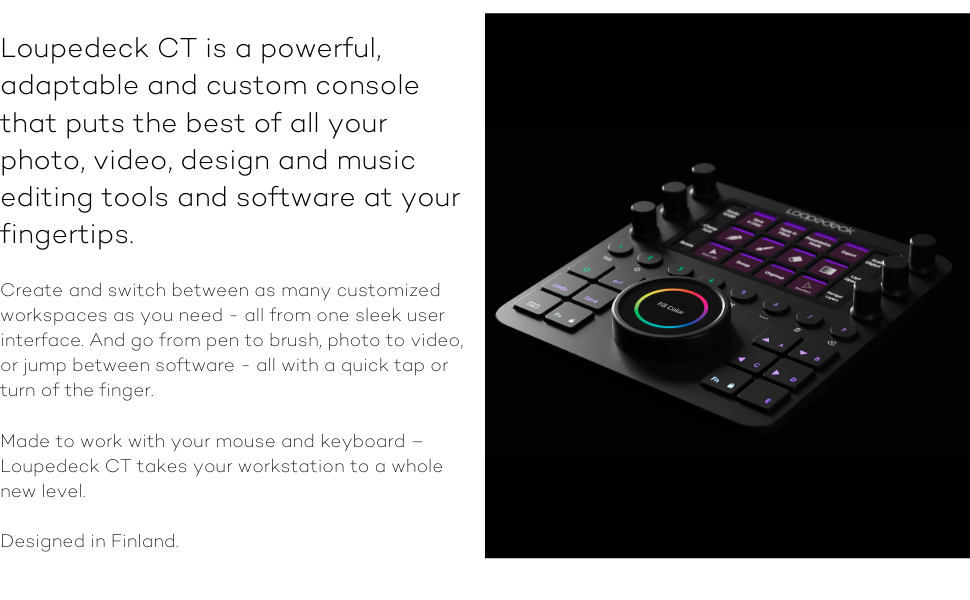
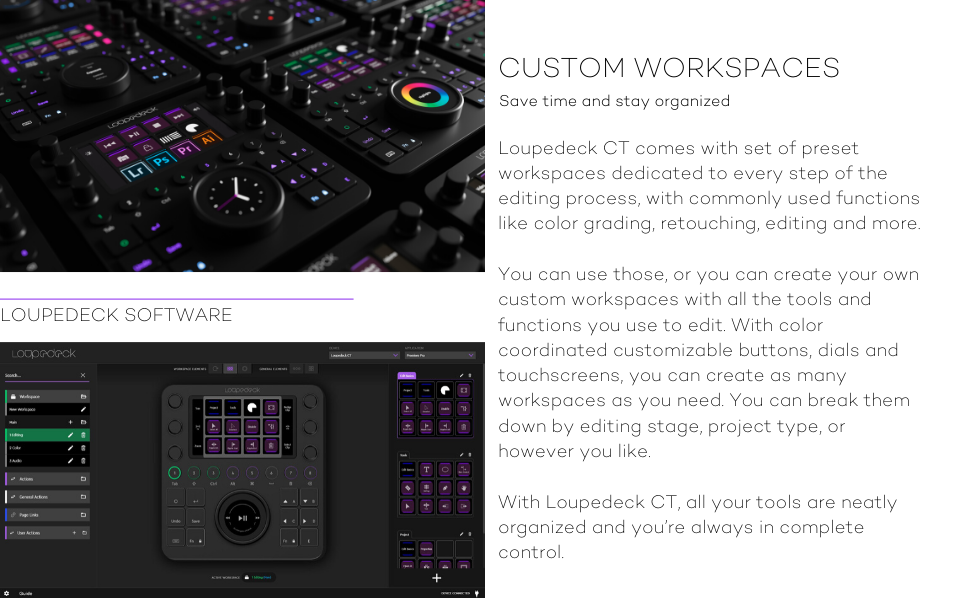
The Loupedeck Creative Tool is a professional-grade, customizable editing console designed to accelerate workflows across photo, video, music, and design software. Featuring native integrations with industry-leading apps like Adobe Creative Cloud and Final Cut Pro, it offers over 100 programmable controls, premium build quality, and intuitive LED-backlit dials. Ready to use out of the box with preconfigured workspaces, it empowers creatives to boost editing speed by up to 20% while delivering precise, tactile control for color grading, audio editing, and more.


| Best Sellers Rank | #1,365 in Photographic Storage Materials |
| Customer Reviews | 4.0 out of 5 stars 811 Reviews |
D**L
Windows driver could be better
I need to logout or sometime restart machine because device driver does not work properly and device goes blank. Only reboot or logoff (sometimes logoff is not enough) fix the issue. With all that it is still a great product. instead of remembering how to compile stuff with a long command line you can just remember in a button. works great with VNC so also under linux (through vnc) you can use it.
D**E
FCPX: Editing and color grading is fun again
This thing rocks!! I’m pretty quick on the keyboard and mouse when using FCPX and didn’t think anything could help me quicken the process. The first few days were weird getting used to it but when I started treating it as an addition rather trying to do everything on the device, it was great! I have probably quickened my editing at this early stage by 20% but it’s a joy to use. It’s made editing fun again!! The audio and cutting features are great but the color grading is dream. It’s so easy to get precise grades at a very fast rate. It’s super smooth and responsive. Two things I’ve learned in the one week I’ve had this: color grading is super precise and a pleasure to use. And lastly, editing is now fun again with this little guy. I would check it out if you want a color grading tool or if you’re bored with your editing workflow. A bit pricy but compared to other color editing tools and what you get with it, it’s pretty great. It was also packaged awesome!!!
K**O
Best Purchase I've Made in a While
During the pandemic video editing has gone from something I did on the side to my sole source of income. I decided to treat myself to the Loupedeck CT, not knowing if it would really be worth the significant cost. I'm so glad I did! It immediately made a huge difference in my quality of life. Not only can I work faster, I produce better work because it's so much easier to fine-tune aspects of my videos. I've gotten much more creative with color because of how intuitive it is to just grab one of the dials and play with it until it's just right. And sometimes it just makes me approach my work with more positivity because it's so satisfying to use. If you're debating between this or the cheaper Loupedeck Live, I probably spend 95% of my time using the top half of the device, which is what you would get with the Live. If you're on a budget, that's a big savings for, in my opinion, all the important functionality. I do think the Loupedeck software underutilizes the possibilities for the main control dial, but just last week an update came out that enhanced it somewhat, so maybe I will find more use for that in the future. As an aside, while I bought the Loupedeck for video editing in MacOS, I've also taken advantage of it for gaming in Windows, and it's been lots of fun to program it to enhance my controls. The possibilities of what it can do in any app are pretty broad, and I feel like I've only scratched the surface. On the physical side, it feels well-built and solid, but also small, thin, and easily portable, and it tucks away easily when I don't need it. I put some tall rubber bumpers on the back edge to make it stand up at more of an angle, as it normally sits very flat.
M**D
Very handy tool!
Beside looking cool with all the shiny illuminated buttons and controls, the device has a lot to offer: Pros: - Beside the presets for several creativity tools I have - which come out of the box - I have also found some more profiles from other companies in the web (e.g. on1 - limited, but something is there) which is awesome. - With 6 programmable & rotatable knobs and a jog shuttle like controller +12 programmable buttons and so on really nice to adjus to your own liking! - With the nice task assignment functionality I was able to even use the device for other use cases (e.g. programming tools, app launcher, etc.) - Adding it behind a KVM let you share easily the device with multiple computers and each computer can have its own set of settings! - Uses USB-C - nice! Downs: - Not cheap! - Do not expect to get support for Lightroom 6 or before - or any non CC Adobe products. That would be really awesome - but those versions are apparently not supported (anymore). Makes you really wonder. - The support for Capture one is in there - and it is claimed that e.g. version 20 would be supported, but many functions do not work for the old version (even on the first screen). If you want to have nice display buttons and more controls you can buy the presets from another company for 35$. It's not that I do not want to earn more folks some money - but if you pay more than 500$'s you would guess that this is somehow included? - I couldn't see problems reported by other testers - however - I can see that with a lower viewing angle on the display in front of the monitor, the LCD display has a shimmering effect like oil in the water (rainbow pattern - starting with <60 degrees angle which is really a lot narrower than you would think). Not necessarily a showstopper but it is clearly annoying. - When adding app shortcuts (under "Run") you should not use quotes around the file names (like when copying them from Windows shortcuts) as these quotes will make the extcutable path unusable. So remove. Comments: - I did test on Windows so far, not on Mac yet. Only saw that the device didn't came on when it was connected over the lightning cable behind a KVM. But I didn't install the SW there yet. - Plan to watch some of the training videos (~20 minutes total) and it will help you to safe a lot of time later on as some things are not as obvious from the getgo but are getting really good to understand once you have heard the explanation. - Once you have set it up you can save your profile. You can then apply the same profile to another computer, correct the paths if neccessary and you are done! General verdict: The device is really useful and helped me to optimize my workflow for many things - and it is also a great eye catcher for sure. Plan to take some time to get into the device and all the controls to learn how it is getting used! E.g. I did not realize first that you can use a swipe on the display to advance to the next page. And - of course: It is quite a lot of money.
D**O
Does Not Meet Expectations
First started using it in FCPX, most of the dials wouldn't even do anything, and if I was able to do something, I would have to open up say the color board, then hover the mouse over the tool for the loupedeck to actually do something. I mainly go this to speed up my editing in lightroom but that didn't even help. It even changed my entire computer keyboard to a different language and all my keyboard shortcuts. For something to cause so many issues, and to actually put work into setting up, its not even close to being worth $500. Another thing is whats the point of creating an account if the settings won't even save over some sort of cloud base. If I'm going to use the loupedeck on one computer, I would expect it to keep the same settings I previously set up, to then be the same on another computer when I'm logged into the app. But no, I have to export the profile and import it to the other computer to use the same setting that I set up. This is not efficient at all.
J**G
Good, not great (but probably as good as anything else)
I've been using a Shuttle Pro V2 for about 10 years. I bought it for use with Logic and Final Cut Pro, but over the years I've adapted it to work with lots of other software. Although I no longer edit audio and video professionally I cut my teeth on old linear editing suites and never really got past the shuttle wheels. The Shuttle Pro did what I needed but I wasn't getting all the use out of it that I could because I could never remember what buttons did what. I had been looking at different solutions for a while, including an iPad solution called Touch Portal. But all the while I would keep looking at the Streamdeck and Loupedeck, hover over the "Buy now" button and then move on. They're just a little too expensive. This fall I finally bit. I have an idea for controlling my amateur radio "remotely" from across the desk and combining a lot of the functions spread out over different apps into one concise interface. I've tried setting up Touch Portal and the Shuttle, but they're really limited to keyboard emulation. I also tested an iCon P1 Nano, but it had issues with newer versions of macOS, and is really designed to be used with preset audio workstation apps. The Loupedeck seems to be the best solution so far. The hardware feels great. It has just enough heft to not slide around the desk. but is small enough to fit into my MacBook bag. It would be really cool if it were wireless, but then it couldn't be as thin (and would need charged daily). It sits nicely on the right side of my keyboard (I'm left handed so the trackpad is on the left). What I like about the Loupedeck CT is all the knobs and buttons can be programmed for pretty much anything. So you can assign a button to trigger a MIDI command right alongside an OS event or application specific keyboard function. It is literally a blank slate out of the box. I was able to quickly set up buttons for my most used apps, using the icon for the app or a quick search online. One thing that was odd is that for some reason I wasn't able to add Photos without some hunting around (It's in /System/Applications/Photos.app, not in the default Applications folder). Once an application is open there might be some system-level controls available, like scrolling in Safari and email. I also set up a knob for increasing/decreasing text size. Volume control and screen brightness are in the macOS default template too. The templates are mostly geared toward professional audio video and photo editing. I use Final Cut Pro, Logic Pro, but not Adobe Photo suite because I just don't need that level of granularity. So there's no preset template for Apple's Photos app, unfortunately. That's the one that sticks out because I'm sure there are plenty of professionals who would use Photos for a quick correction on a social media post (for example). And I'm on my own for applications like Metashape or most 3D Printing software. That's to be expected. It is difficult to set up but the software makes it go fairly smoothly. You have to think about defining an action first, get it set (might be a macro or several steps), then assign it to a button. Be ready to try a few times to get it right. But because it is so much more powerful than the Shuttle programming buttons is actually a little easier. Note that I had to downgrade the software to V5.9.1.19365 to get the Final Cut Pro plugin pages to load. The support tech who emailed me the solution said they are working on returning FCP compatibility, but it was a pretty bad unboxing experience to not have one of the "flagship" programs supported out of the box. I should also mention the Command Post program. This is like the basic Loupedeck software on expert mode. I haven't dove into it too deeply yet, but if you're running FCP you'll need this program to get full use of the Loupedeck. Again, seems like Logitech needs to do better at updating Loupedeck. Really doesn't look good relying on a 3rd party app for a program featured on their own marketing. I'm sure I will get better at using this controller over time. For now it's a long steep hill to climb. But being able to run complicated macros and use better controls for tasks that need them it will be a great addition to any desktop, not just creatives. If only it weren't so darn expensive!
G**R
Great tool
I’m a student in Graphic Design and this tool should be cheating. With that being said, This tool is Awesome everyone should have one. This tool already saves so much time and I’m just learning how to use it. You can program it to do anything or use the preset controls. If you’re looking for something to invest in and help you with your work then this is the tool you need to buy. It’s a little on the expensive side but worth every penny. I have a Surface Laptop Studio and this tool really helps when I’m drawing and my keyboard is covered. I use it the most in Adobe Indesign and Photoshop so far. I love it, buy one today.
K**R
An amazing tool for digital artists.
I bough this in 2022, primarily for use with Adobe Creative Cloud programs. I'm a digital artist, and primarily use Adobe Illustrator and Photoshop. It had a Photoshop workspace already, and I programmed a workspace for Adobe Illustrator. Recently began learning how to digitize machine embroidery designs, and the software has excellent keyboard shortcuts, but I design on a suface studio laptop with the screen folded in drawing mode. I spent a weekend programing al the shortcuts into a new workspace profile and assigning the most used buttons, and my workflow increased dramatically. Definitely recommend it to other digitizing artists, especially since the 5.2 software update.
Trustpilot
2 weeks ago
2 weeks ago