We remain fully operational. Our teams are working around the clock to ensure your deliveries continue safely.

قم بتنزيل التطبيق


معلومات عنا
حقوق الطبع والنشر © 2024 Desertcart Holdings Limited
قم بتنزيل التطبيق

🚀 Compact power, limitless potential — your desk’s new MVP!
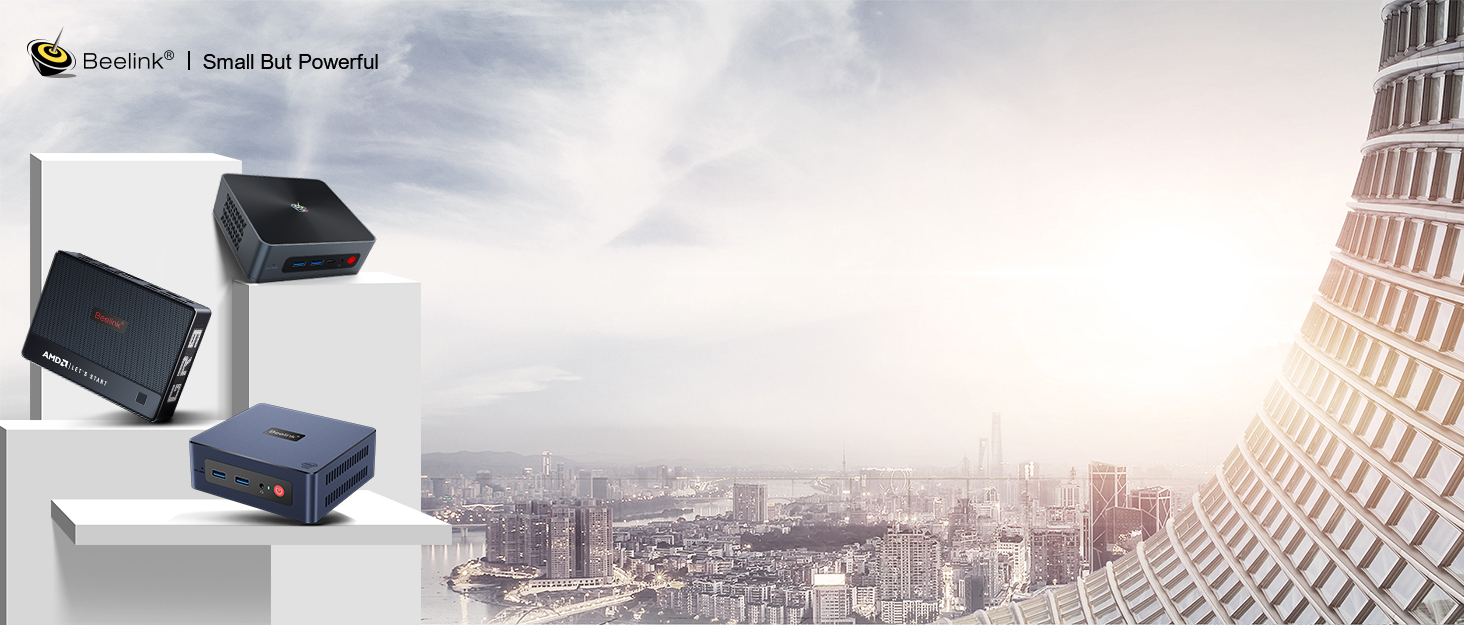
The Beelink Mini S12 Pro is a sleek, ultra-compact mini PC powered by an Intel 12th Gen 4-core N100 processor clocking up to 3.4GHz. Equipped with 16GB DDR4 RAM and a 500GB SSD, it delivers fast, efficient multitasking and storage. Dual HDMI ports support stunning 4K UHD displays, while WiFi 6, Bluetooth 5.2, and Gigabit Ethernet ensure cutting-edge connectivity. Designed for professionals and creatives alike, it features advanced cooling, multiple USB 3.2 Gen2 ports, and a space-saving VESA mount, making it ideal for office, home entertainment, and industrial applications.


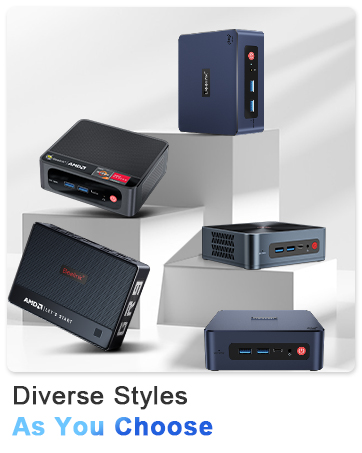

| ASIN | B09DPV3D4N |
| Are Batteries Included | No |
| Brand | Beelink |
| Color | Blue |
| Computer Memory Type | DDR4 SDRAM |
| Connectivity Type | Bluetooth 802.11a/b/g/n/ac, 5 GHz Radio Frequency, 2.4 GHz Radio Frequency |
| Customer Reviews | 4.2 4.2 out of 5 stars (188) |
| Date First Available | 24 September 2021 |
| Form Factor | mini pc |
| Graphics Card Description | Integrated |
| Graphics Card Interface | Integrated |
| Graphics Chipset Brand | Intel |
| Graphics Coprocessor | Intel UHD Graphics 600 |
| Graphics RAM Type | DDR SDRAM |
| Hard Disk Description | SSD |
| Hard Disk Rotational Speed | 1800.00 |
| Hard Drive Interface | Serial ATA |
| Hard Drive Size | 500 GB |
| Hardware Platform | PC |
| Item Weight | 880 g |
| Item model number | Beelink |
| Manufacturer | Shenzhen AZW Technology Co.,Ltd. |
| Maximum Memory Supported | 8 GB |
| Memory Technology | DDR4 |
| Number of HDMI Ports | 2 |
| Number of USB 3.0 Ports | 4 |
| Operating System | Windows 10 Pro |
| Optical Drive Type | 500 Gb |
| Power Source | Input: 100-120V AC, 50/60Hz |
| Processor Brand | Intel |
| Processor Count | 4 |
| Processor Socket | FP4 |
| Processor Speed | 2.3 GHz |
| Processor Type | Core i7 |
| Product Dimensions | 11.48 x 10.41 x 4.32 cm; 880 g |
| RAM Size | 16 GB |
| Resolution | 3840x2160 |
| Screen Resolution | 3840 x 2160 |
| Series | Beelink MINI S |
| Wireless Type | 2.4 GHz Radio Frequency, 5 GHz Radio Frequency, Bluetooth |
S**D
Windows automatic repair stuck and it is on loop 😖
Automatic Repair Loop and Incorrect Password when Trying to Access Anything in Advanced Options. I have been using this for very few time for over a year, and I have experienced an issue that many people also had too. I was updating some of my drivers from a third-party software that was reliable and restarted my system like usual when it began to send me into an automatic repair loop. I kept restarting it several times to see whether it will change anything and nothing. I tried to go through “Advanced Options” to see whether I could try to go to “Command Prompt” or some of the other options to get around the issue. Every time that I click on these options, it prompts to a message that I need to type in the password for my account to access the option. Essentially, I would always get an incorrect password error every time I typed my password in. I know that I typed the password correctly because I had my password saved in a password manager, looked at the password several times, and the keyboard layout was “US”. I even changed my password for my account and signed in into the Microsoft website with the new password and typed it all correctly. However, when I tried to type in the new password on my laptop, it gave me the incorrect password message again. I restarted once more and got the same results. There’s no way that I kept typing it incorrectly because I looked at it several times and even checked to make sure “caps lock” isn’t on and also “num lock”. Nothing changed from there. I looked on YouTube to find solutions and go through BIOS or whatever to diagnose the issue and either nothing came up, or it failed to detect the issue. I had essentially tried everything and there was an option for “Startup Setting” where I could try to disable something to see whether that was the problem. That option initially wouldn’t require me to use my password to sign in because I had to restart my device to disable a setting, but it would always send me to a black screen for essentially hours. Nothing happened and I had to physically hold down the power button to force shut down the thing again. I really need to find out what could possibly be the issue here.
E**D
Estoy feliz, inmediatamente le instale Debian Linux 12 y CasaOS (no puedo reseñar su windows de fabrica) Debian linux detecto todo, incluso el Plex detecta la "aceleradora de video" para transcodificar. Le agrege un ssd interno de 2.5 y un disco externo para mas capacidad. ocupa poco espacio y solo necesita un cable de red y la energia.
W**Y
Got the EQ12 w/ 16 GB RAM. And despite of the listing states in parts of the description, rest assure that you will receive the 16 GB model. So far, it is working great. Setup was easy, all connections are working fine and it was delivered fast. Nice package as well. Also, it is running smooth and quite. Didnt notice any overheating coming from the box.
R**N
Ordered January 1, 2022 - received January 5th! Great response. Amazed how small it is. So far, so good! No problems at all but it's only been six weeks. Do not use every day, just most days. When I turn it on in the morning I usually do not turn it off until end of day after watching Youtube and other videos. Have put it to sleep and left it in that state for a couple of days. It turns on with no on/off button hesitations and is ready to use in less than one minute. Even after leaving it on all day it is still cool to the touch and although I sit less than a foot away from it there is no sound. In conclusion I can only say that it has worked as hoped - almost perfectly! Other purchasers have reported problems, but after 6 weeks I have no complaints.
L**Z
Era justo lo que necesitaba en el trabajo de oficina
D**A
La entrega en los tiempos marcados. Sin problemas. El embalaje bien, no hay queja alguna. La configuración es sencilla. La descripción de componentes corresponde, muy bien por ello. El precio está también muy bien. El punto es que para tener 2 ventiladores, la parte superior de plástico de la carcasa se calienta mucho y no me parece normal. La seguiré observando pero no me agrada que precisamente en donde está el procesador se caliente tanto.
ترست بايلوت
منذ أسبوعين
منذ شهر